
Backup Management
Architect offers automated backup management with integrated options to create, manage and restore backups. Backups work on a static configuration for each individual game server instance and must be explicitly set up.
Backups can be configured under Configuration, Server Operations.
For how archives are built, disk size implications, scheduling and restore rules, see How backups work.
Volume Shadow Copy (Windows)
On Windows, locked game files can prevent a consistent backup while the server is running. Control this with `backups_vss` in your agent `config.toml`:
[filesystem]
backups_vss = false
| Value | Behavior |
|---|---|
| `false` (default) | Zip directly from the live deployment. Files that cannot be opened are skipped. |
| `true` | Create a Volume Shadow Copy (VSS) first so locked files can be read while the server is running. |
Requires an Architect Agent restart after changing `config.toml`. See Configuration.
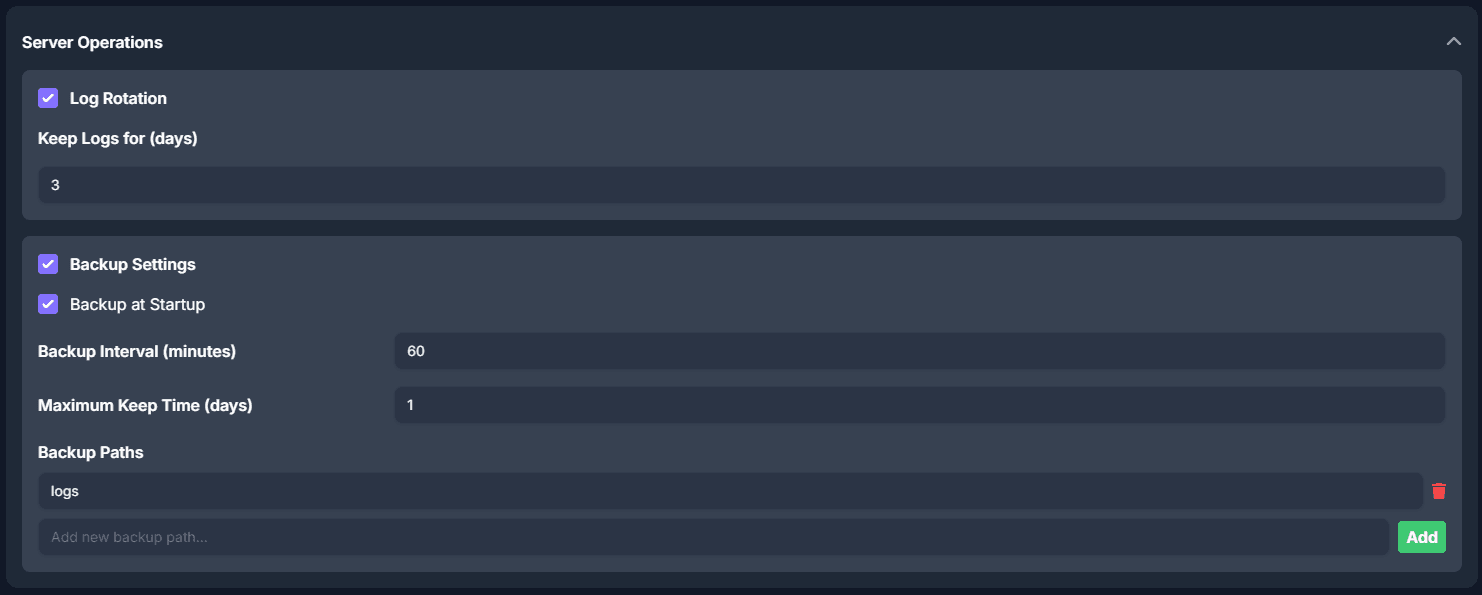
Backup at Startup
Controls if a backup should be created, just before the server process is initiated.
Backup Interval
An interval in which the backup should be created while the game server is running.
Can be disabled by setting value to `0`
Maximum Keep Time
To automatically clean up older backups, you are able to configure individual clean up times in days.
Can be disabled by setting value to `0`
Backup Paths
Only the relative path to the file/folder needs to be configured.
Backup paths are fully dynamic, meaning you can backup primary folders, individual files or files using a dynamic pattern.
An example configuration for the folder `logs` would prompt all files contained in the `logs` older, including all sub directories to be backed up.
Wildcards are available by using `*` within the path.
Management of created Backups
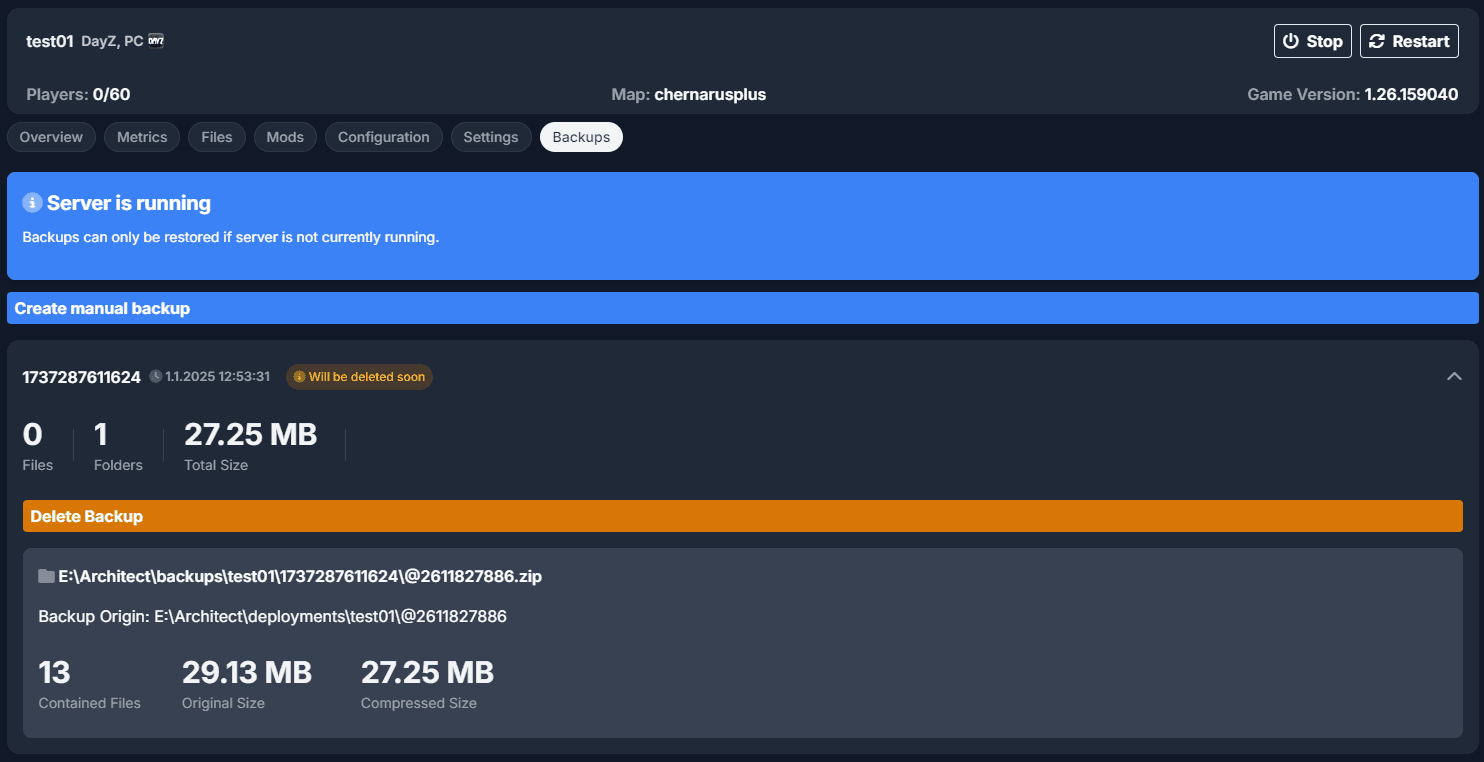
Backup management is available through the Backups tab for each server.
You are able to create a manual backup, or delete and restore backups. As well as getting details about the created backups currently locally present.
Restoring backups will fully overwrite the files or re-create them.